How-to
Use these procedures for the most common administration and operational tasks in Operations Automation.
Refresh License Information
- Open Operations Automation License.
- Review the current License Status, License Tier, and License Expiry.
- Run Refresh License.
- Confirm the status updates successfully.
Create An Operations Automation Setup
- Open Operations Automation Setup.
- Create a new record and enter Setup Code, Group, Description, and Blocked as needed.
- Set Object Type to Run and Object ID to Run.
- If the setup must target specific source records, define Record Table ID Filter and Record Table Field Filters.
- Configure retry and batch settings as needed, then configure retention policy in Retention Policies.
- Save the setup and confirm it appears on the setup list.
Set Or Change The Default Role Center Profile
- Open your profile settings in Business Central.
- Select the profile named Operations Automation.
- Set it as your default profile.
- Sign out and back in if required by your tenant policy.
- Verify that the Operations Automation role center opens with the expected actions.
- Change to another profile later if your role or preference changes.
Configure Default Notification Per Status In Status Setup
- Open Operations Automation Status.
- Review each finished status.
- Enable or disable Send Email Notification for Success, Warning, Error, Fail, and Reprocessed according to your policy.
- Leave Waiting and In Process unchanged; these statuses are not exposed for notification eligibility.
Use this page to define whether a status is globally eligible for notification. This does not by itself send any emails.
Configure Setup-Level Notification Recipients And Status Switches
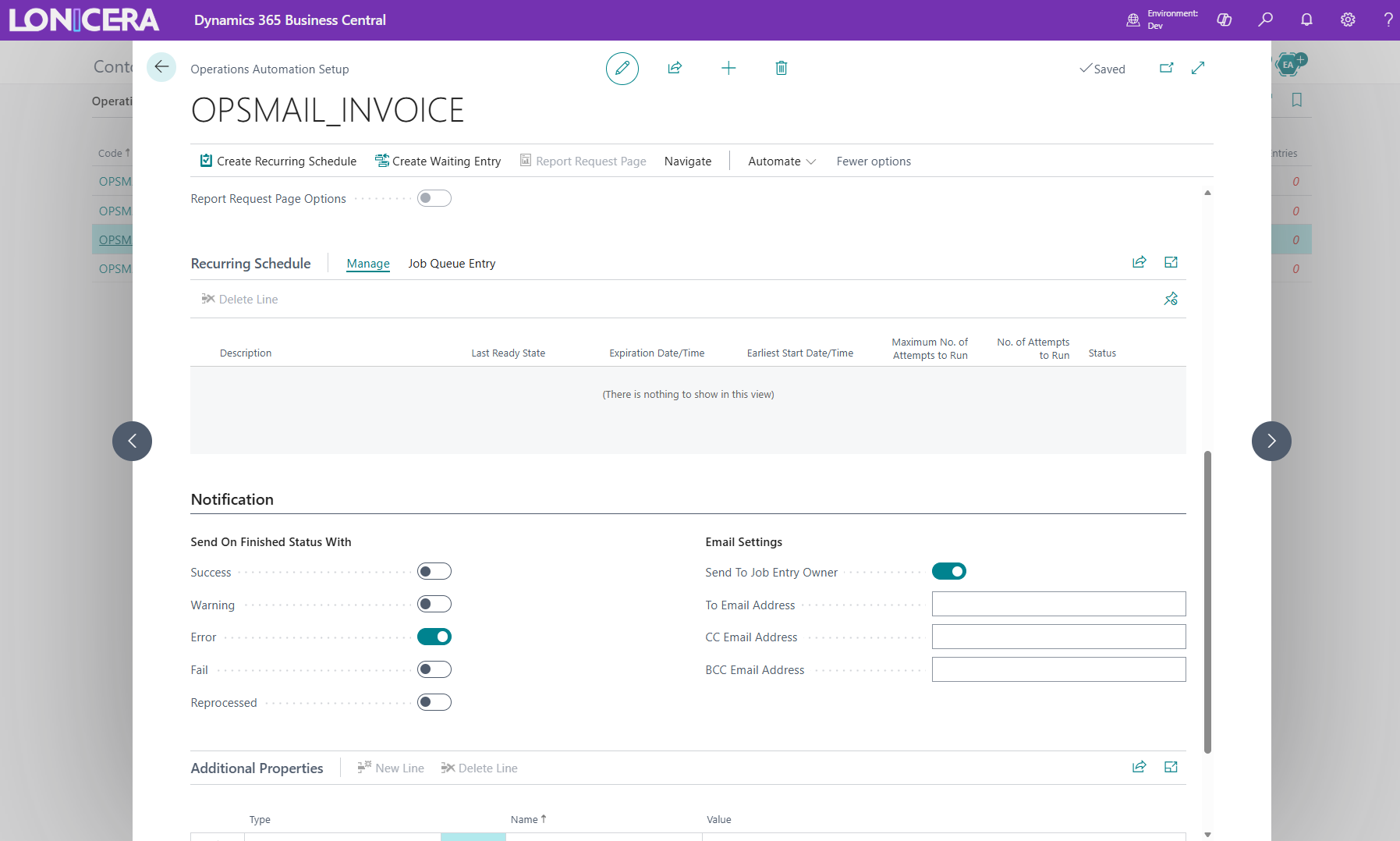
- Open the relevant Operations Automation Setup.
- In the Notification section, enable the finished statuses that should send for this setup.
- Enter Send To Email Address, CC, and BCC recipients as needed.
- Enable Send To Job Entry Owner if the entry creator or owner should receive notifications.
- Test with a controlled entry and confirm a log is written for the notification outcome.
Notifications are sent only when the status is enabled both here and in Status Setup.
Optional: Set Up The Email Scenario For Entry Notifications
- Open Email Scenario setup in Business Central.
- Locate the scenario used by Operations Automation for entry notifications.
- Assign the email account that should be used to send entry notification emails.
- Save the assignment.
- Open the relevant Operations Automation Setup and confirm notification status switches and recipients are configured.
- Process or reprocess a test entry that ends in a notification-enabled finished status.
- Confirm the email is sent and check entry logs for notification success.
Use this optional setup when entry notifications should be routed through a specific Business Central email account through scenario mapping. If this is not configured, Business Central uses the default email sender and default email account.
Configure Retention Policy For Entry And Log Entry
- Open Retention Policies in Business Central.
- Add or review policies for Operations Automation Entry data and Operations Automation Log Entry data.
- Set retention periods based on operational, audit, and compliance requirements.
- Enable the policies and save your changes.
- Run the retention policy job queue, or wait for its next scheduled run.
- Validate results by reviewing historical entries and logs to confirm cleanup matches policy.
Set a longer retention period where extended audit trails are required, and a shorter period for high-volume scenarios to control data growth.
Process An Entry Now
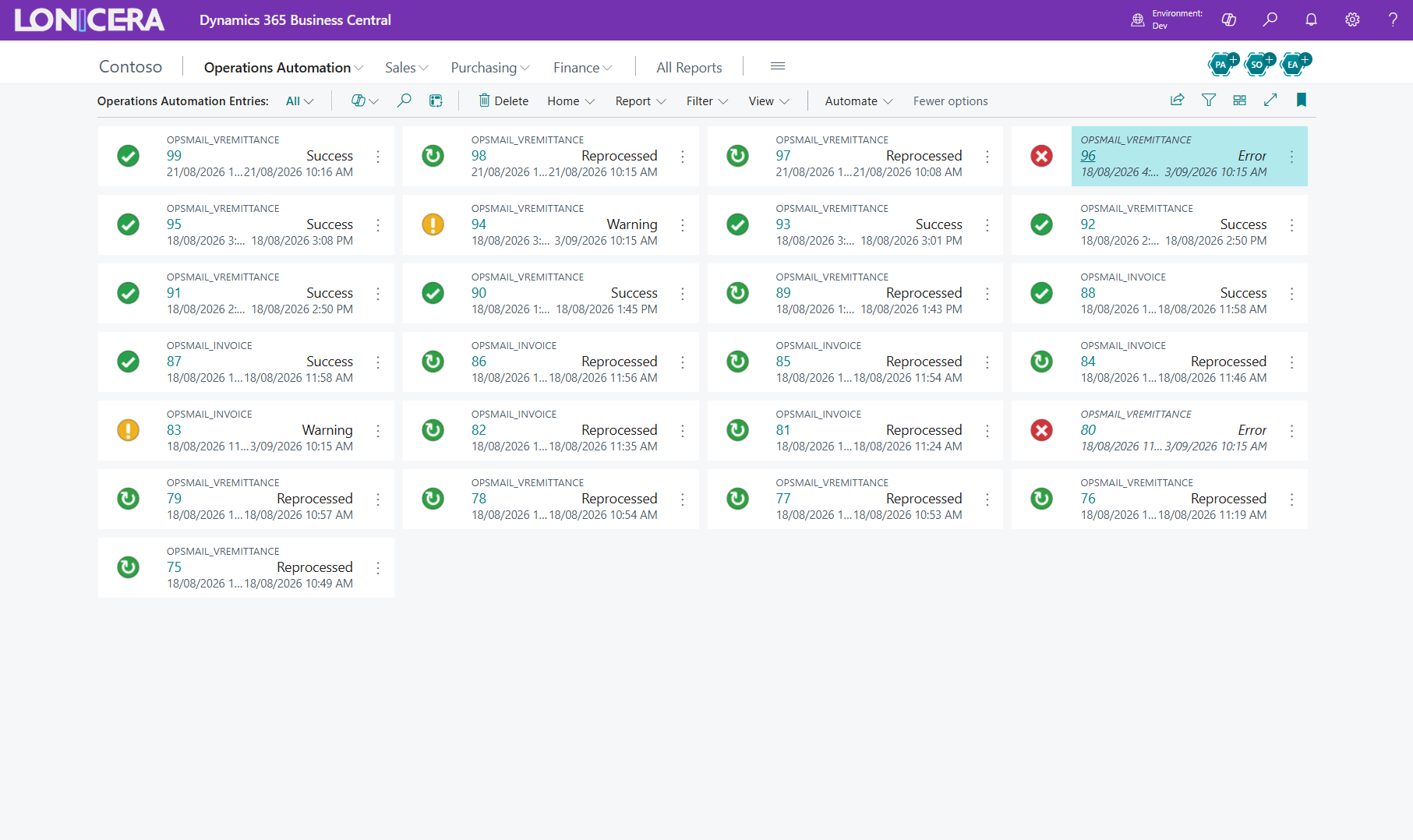
- Open Operations Automation Entries.
- Find the entry you want to run.
- Use the process action for that entry.
- Confirm the prompt if one is shown.
- Refresh the page and review the final status and logs.
Reprocess A Failed Or Completed Entry
- Open Operations Automation Entries or an individual entry card.
- Select an entry with a status that supports reprocessing.
- Run Reprocess.
- Enter a reason if your process requires one.
- Review the new waiting entry and the link back to the original entry.
Use reprocess when you need a traceable rerun instead of editing the original entry.
Investigate Logs And Attachments For An Entry
- Open the entry card from Operations Automation Entries.
- Review related log entries for success, warning, or error messages.
- Export source or target attachments when available.
- Compare the final status with the last log message.
- If the issue involves email sending, check for notification-specific warning logs.
Find Related Entries
Use one of the following methods depending on where you start.
Find Entries
- Open the source document or posted document (for example, invoice, statement context, or remittance context).
- Use Navigate to show related records.
- Filter the result by Operations Automation entry pages if needed.
- Open the related Operations Automation Entry or Entries page.
- Review status, logs, and attachments for the matching source reference.
Find Operations Automation Entries
This custom page works when the related entry setup is assigned to a group.
- Open the Find Operations Automation Entries page (page 73053587 "lts_opsaFindEntries").
- Provide the document reference filters from the source context:
- Set Reference Type.
- Set Reference No.
- Set Sub Reference No. when applicable.
- Review the grouped results by Job Group and No. of Entries.
- Drill down No. of Entries to open the matching entry card or entries list.
Use the custom page when you need a fast grouped view across multiple automation groups for the same source reference.
Auto-Send Customer Statements
- Open Operations Automation License and enable Customer Statement features if they are not already active.
- Confirm the customer statement queue scenario is available and not blocked.
- Create or review an Operations Automation Setup that runs the customer statement queue or customer statement email process.
- Configure any customer filters and report parameter expectations.
- Confirm customer email addresses exist and the required report selection for customer statements is configured in Business Central.
- Run the queue process to create waiting entries for eligible customers.
- Monitor entries and logs for statement generation and delivery.
Behind the scenes, this scenario uses the customer statement queue report and the customer statement email codeunit to create and process waiting entries. See Email Customer Statement Job for details.
Auto-Send Posted Sales Invoices
- Open Operations Automation License and enable Email Invoice Job.
- Create or review an Operations Automation Setup that runs the posted sales invoice email codeunit.
- Set customer-based filters if the job should apply only to a subset of invoices.
- Confirm posted sales invoice report selections and any custom report layouts are configured.
- Confirm customer email addresses are available.
- Trigger the business flow that inserts waiting entries for posted sales invoices.
- Monitor entries and logs until invoice emails are delivered or warnings are logged.
Behind the scenes, this scenario creates waiting entries from posted sales invoice records and sends the selected invoice report as a PDF attachment. See Email Invoice Job for details.
Auto-Send Vendor Remittance Advice
- Open Operations Automation License and enable Vendor Remittance features if they are available in your license.
- Create or review an Operations Automation Setup that runs the vendor remittance email codeunit.
- Apply vendor-based filters if required.
- Confirm vendor remittance report selections and any custom layouts are configured.
- Confirm vendor email addresses are available.
- Trigger the business flow that inserts waiting entries for vendor remittance advice.
- Monitor entries and logs until remittance emails are delivered or warnings are logged.
Behind the scenes, this scenario creates waiting entries from vendor ledger entries and sends remittance advice as a PDF attachment. See Email Vendor Remittance Job for details.