Concepts
This page explains the core records and behaviors used by Operations Automation.
Operations Automation Setup
An Operations Automation Setup defines a reusable automation configuration. It tells the app what object to run and how that operation should behave.
Typical setup responsibilities include:
- Selecting a codeunit or report to run
- Defining record filters or report parameters
- Setting retry behavior
- Setting retention policy behavior
- Defining notification recipients and statuses
Operations Automation Entry
An Operations Automation Entry is a single queued or processed work item. Entries are created when a setup schedules work, when a built-in automation scenario inserts a waiting entry, or when an integration creates an entry through the API.
Entries carry:
- Setup code
- Group code
- Status
- Source record or document information
- Job queue ownership information
- Related logs and attachments
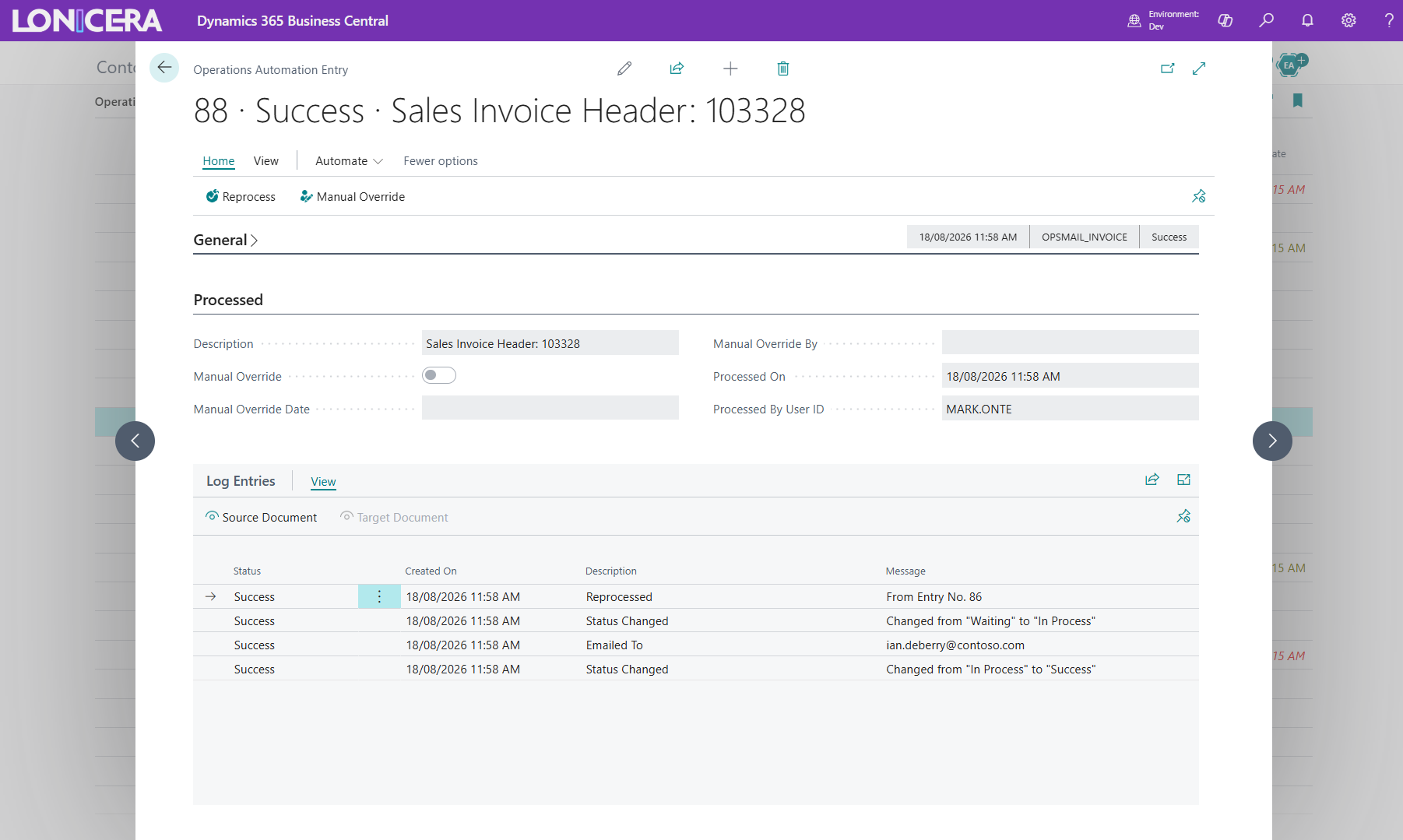
Entry Lifecycle
An entry typically moves through this lifecycle:
- Waiting
- In Process
- Success, Warning, Error, Fail, or Reprocessed
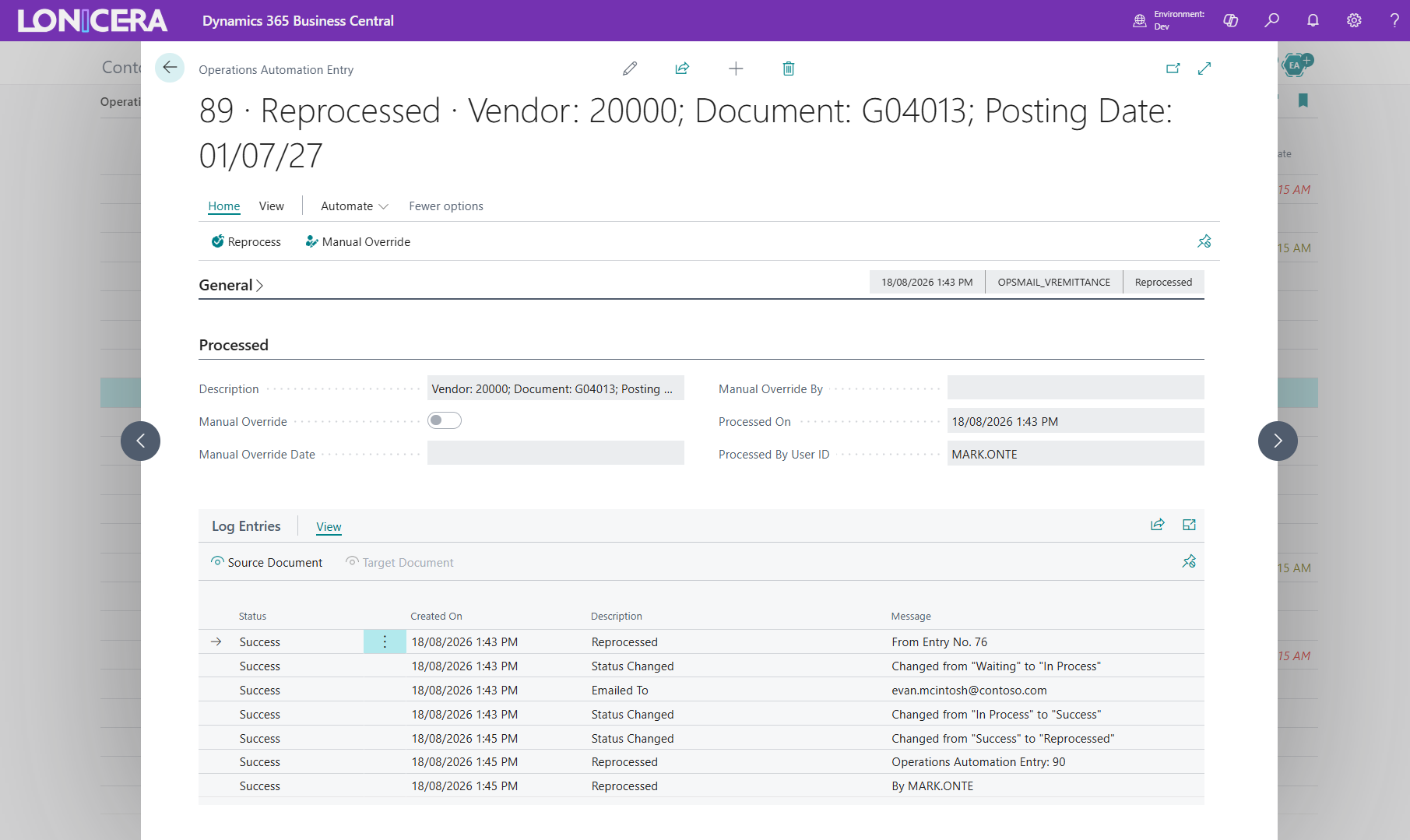
Reprocessed means a new entry was created from an earlier one. That relationship is tracked through parent and reprocessed-from entry fields.
Status
Status is both an operational state and part of the notification model.
Status Setup allows administrators to enable or disable Send Email Notification for finished statuses. This is the default eligibility layer for notifications.
Important rule:
- Waiting and In Process are not exposed as notification-enabled statuses on the Status Setup pages.
Two-Layer Notification Model
Notifications are sent only when two conditions are satisfied.
- The status is enabled in Operations Automation Status.
- The same status is enabled on the specific Operations Automation Setup.
If setup-level switches are on but the status-level default is off, the app logs that notification sending is disabled for that status.
Group
An Operations Automation Group is an administrative way to organize related setups and entries. Groups are useful when you want to filter or manage automations by functional area.
Setup Queue
Setup Queue records link an Operations Automation Setup to Business Central job queue execution. This is how the app tracks the owning job queue entry and related run metadata.
Log Entry
Log entries provide the execution history for an Operations Automation Entry. Logs are used to:
- Record success or failure messages
- Capture warning conditions
- Record notification outcomes
- Support troubleshooting and audit review
Attachment
Attachments store source or target content associated with an entry or with an entry log. These are useful when troubleshooting document handling or reviewing generated outputs.
Retry
Retry behavior is configured on the setup. When enabled, the setup can define:
- Maximum retry attempts
- Retry interval in minutes
- Retry exception filters
Reprocess
Reprocess creates a new waiting entry derived from an earlier entry. It is used when a completed or failed operation needs to run again with traceability back to the original work item.
Retention Policy
Retention for Operations Automation entries and logs uses standard Business Central Retention Policies. Administrators configure retention periods for cleanup based on audit, compliance, and performance requirements.
Outbound Email Automation
The app includes specialized automation flows for:
- Posted sales invoices
- Customer statements
- Vendor remittance advice
These scenarios insert waiting entries based on source records and then process those entries through configured Operations Automation setups.