Getting Started
Use this page to complete the first-time setup for Operations Automation and validate that the app can create and process entries successfully.
Prerequisites
- The Operations Automation app is installed in Business Central.
- A valid License is required.
- The app needs outbound HTTP access to register and get license information from Lonicera services.
- You can open the Operations Automation role center or a role center that exposes Operations Automation actions.
- Your user has permission to manage setups, statuses, entries, and license information.
- At least one Business Central email account is registered if you plan to send notifications or outbound documents.
Assign User Permission Roles After Installation
After installation, the default permission set will be auto assigned to:
- SUPER user: assign "Operations Automation - Admin".
- Other users: assign "Operations Automation - User".
Open The Feature
Open one of the available Operations Automation entry points in Business Central:
- Operations Automation Setup
- Operations Automation Entries
- Operations Automation License
If you are starting from the setup list, begin with Operations Automation Setup List and open a setup card from there.
Configure License Information
Open the Operations Automation License page and review:
- Notification Email
- Auto Refresh License
- License Tier
- License Status
- License Expiry
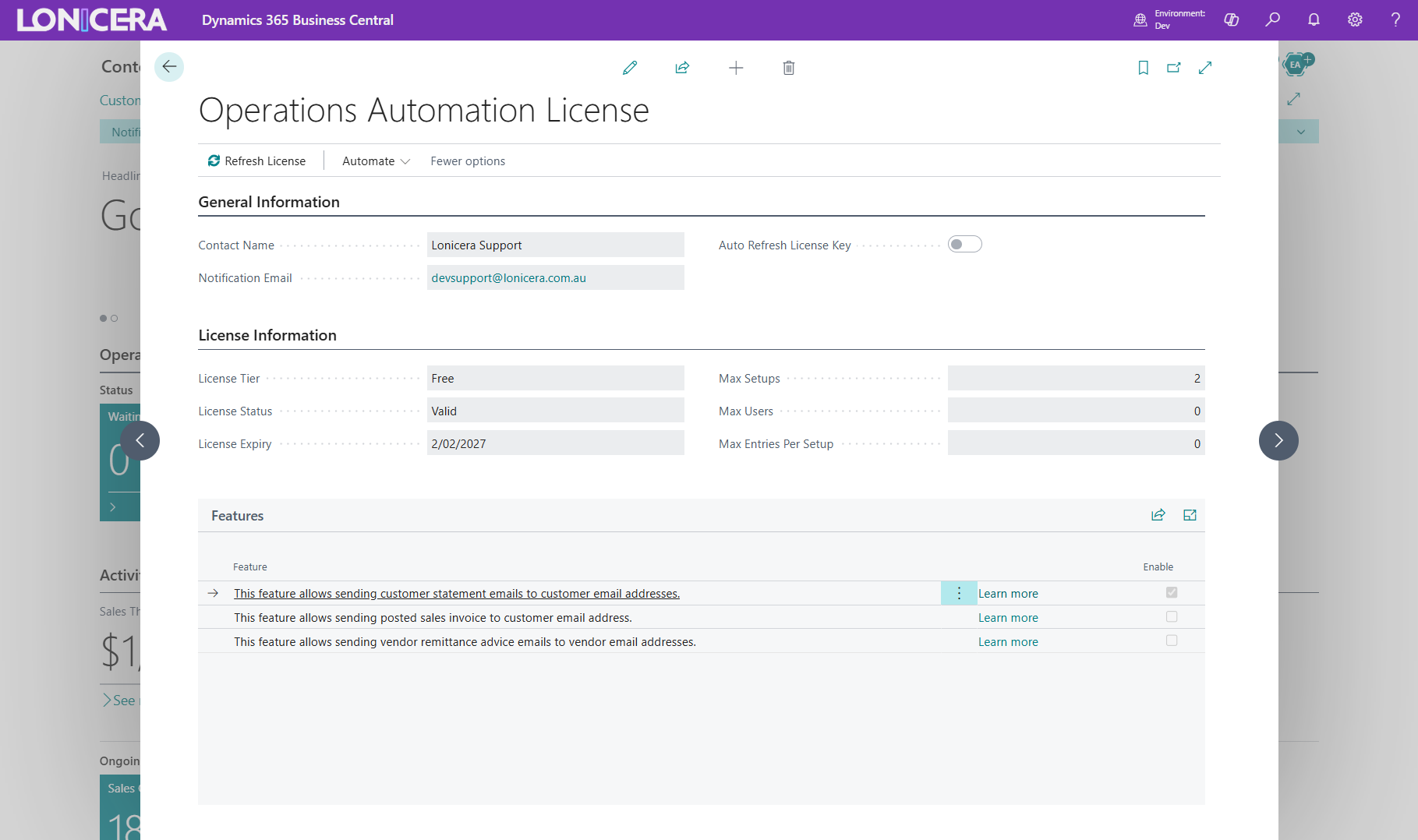
Recommended first steps:
- Enter the contact details required by your organization.
- Confirm the notification email is correct.
- Refresh the license information.
- Verify the expected features are enabled.
A Free License usage is available for up to 5 Operations Automation setups. It includes startup automation scenarios for:
- Emailing customer statements: Auto-Send Customer Statements
- Emailing posted sales invoices: Auto-Send Posted Sales Invoices
- Emailing vendor remittance advice: Auto-Send Vendor Remittance Advice
Verify Email Accounts
Operations Automation checks whether any Business Central email account is registered. If no account is available, the app raises a notification prompting users to register one.
Before enabling notifications or outbound email jobs:
- Confirm at least one email account is registered in Business Central.
- Confirm the relevant email scenario configuration is available for Operations Automation.
- Confirm recipient addresses exist on customers, vendors, or setup records where required.
Set Up The Email Account Scenario
Operations Automation sends notification emails by using the Business Central email scenario named Operations Automation.
Configure it before testing notifications:
- Open the Email Scenario setup in Business Central.
- Find the Operations Automation scenario.
- Assign the email account that should send Operations Automation notifications.
- Save the scenario assignment.
- Send a controlled test through an Operations Automation entry to confirm the scenario is working.
If the scenario is not assigned, the app can fail notification sending even when an email account exists.
Create Your First Operations Automation Setup
Create a setup record in Operations Automation Setup.
Enter and review these core fields:
- Setup Code
- Group
- Description
- Blocked
- Object Type to Run
- Object ID to Run
- Record Table ID Filter
- Record Table Field Filters
Then configure the operational behavior that applies to this setup:
- Recreate Waiting Entry After Execution
- Process In Batch if needed
- Job Queue Entry Run In Minutes
- Retry When Error settings
- Retention policy behavior (configured in standard Business Central Retention Policies)
Configure Status Defaults
Open Operations Automation Status and review the Send Email Notification setting for each finished status.
Important behavior:
- Waiting and In Process do not expose the Send Email Notification toggle.
- Finished statuses such as Success, Warning, Error, Fail, and Reprocessed can be enabled or disabled for notification eligibility.
These status-level settings work together with each setup's notification settings.
Configure Setup-Level Notifications
In the setup card, configure:
- Send Email On Success
- Send Email On Warning
- Send Email On Error
- Send Email On Fail
- Send Email On Reprocessed
- Send To Job Entry Owner
- Send To Email Address
- Send To Email Address - CC
- Send To Email Address - BCC
Notifications are only sent when both of these are true:
- The finished status is enabled in Status Setup.
- The same status is enabled on the specific Operations Automation Setup.
Create A First Waiting Entry
From the setup card, create a waiting entry and then review it on the Operations Automation Entries page.
Confirm that the entry shows:
- The expected setup code
- The expected status
- The correct source document context, if relevant
- Logs after processing
Validate First-Run Behavior
After the first entry is processed, validate:
- The entry reaches the expected final status.
- Logs are created.
- Notifications are sent only when enabled.
- Attachments can be reviewed or exported when applicable.