Overview
Operations Automation is an extension for Microsoft Dynamics 365 Business Central focused on advanced job queue management. It adds a dedicated automation model on top of standard job queue execution so teams can schedule, monitor, retry, notify, and reprocess business operations in a controlled way.
Who It Is For
- Business Central administrators configuring automation
- Operational teams monitoring background processing and notifications
- Consultants implementing document delivery workflows
- Integrators consuming the API pages
Key Outcomes
- Faster and more consistent background operation handling through standardized setup and scheduling.
- Better operational visibility with entry status tracking, logs, and attachments for troubleshooting.
- More reliable exception handling using retry and reprocessing patterns.
- Reduced manual communication effort through status-based notification controls.
- Streamlined outbound document delivery for supported email automation scenarios.
- Cleaner integration paths with API endpoints for setup and execution workflows.
What The App Adds
- Operations Automation Setup records that define what object runs and how it is filtered.
- Operations Automation Entries that represent queued or processed work items.
- Status tracking for waiting, in-process, success, warning, error, fail, and reprocessed outcomes.
- Log entries and attachments for auditability and investigation.
- Notification controls that combine status-level defaults with setup-level delivery settings.
Where Users See It
Users can open Operations Automation from the dedicated role center and from supported Business Central role centers that expose Operations Automation actions such as setup, entries, and license information.
The app also includes a default Operations Automation Role Center profile. Users can set this profile as their default and switch to another profile at any time.
The main administration surfaces are:
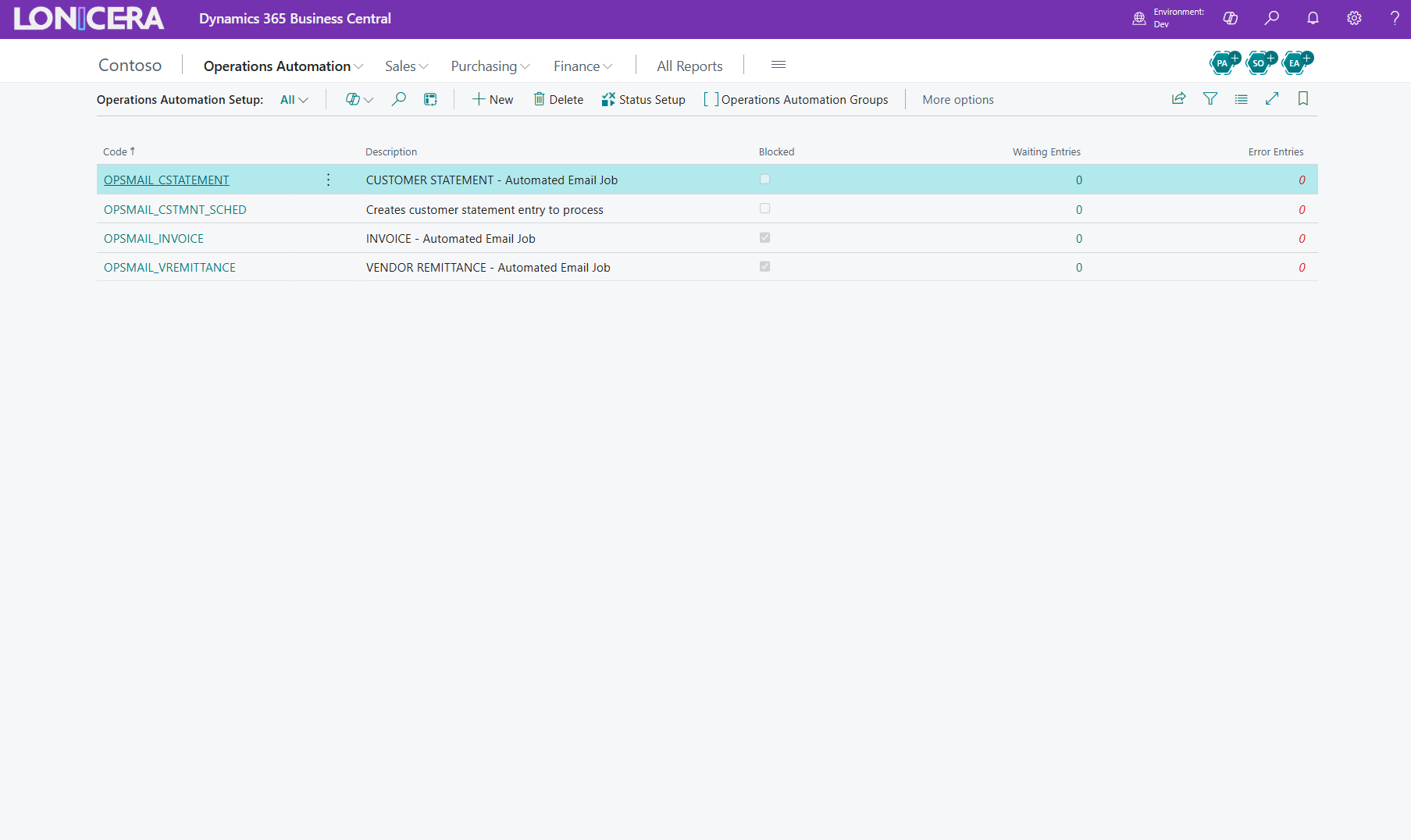
- Operations Automation Setup List
- Operations Automation Setup
- Operations Automation Entries
- Operations Automation Status
- Operations Automation License
Main Functional Areas
Setup And Scheduling
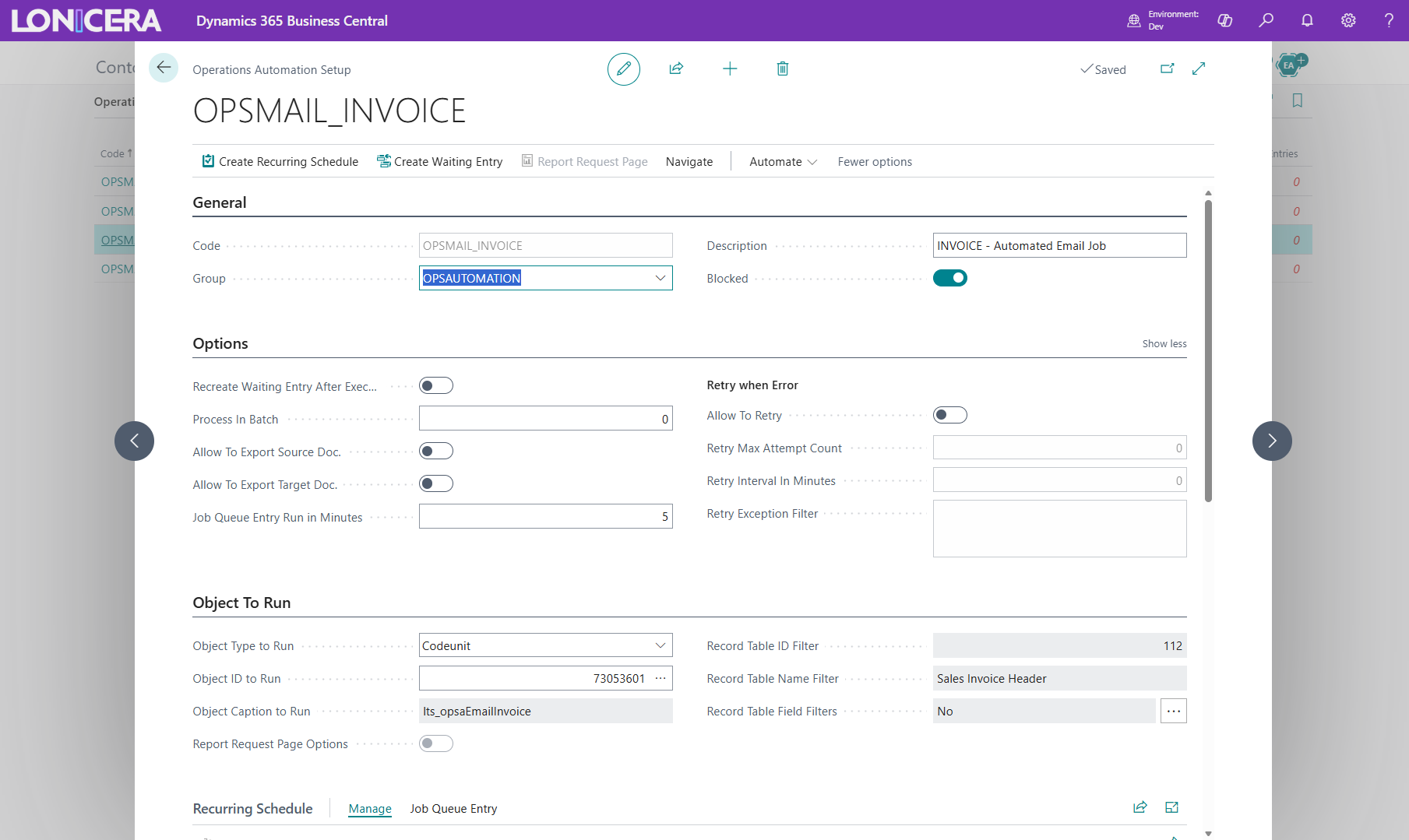
Administrators define an Operations Automation Setup with:
- A setup code and description
- An optional group
- The object type and object ID to run
- Record filters or report parameters
- Retry settings
- Retention policy behavior
- Notification settings
Execution Tracking
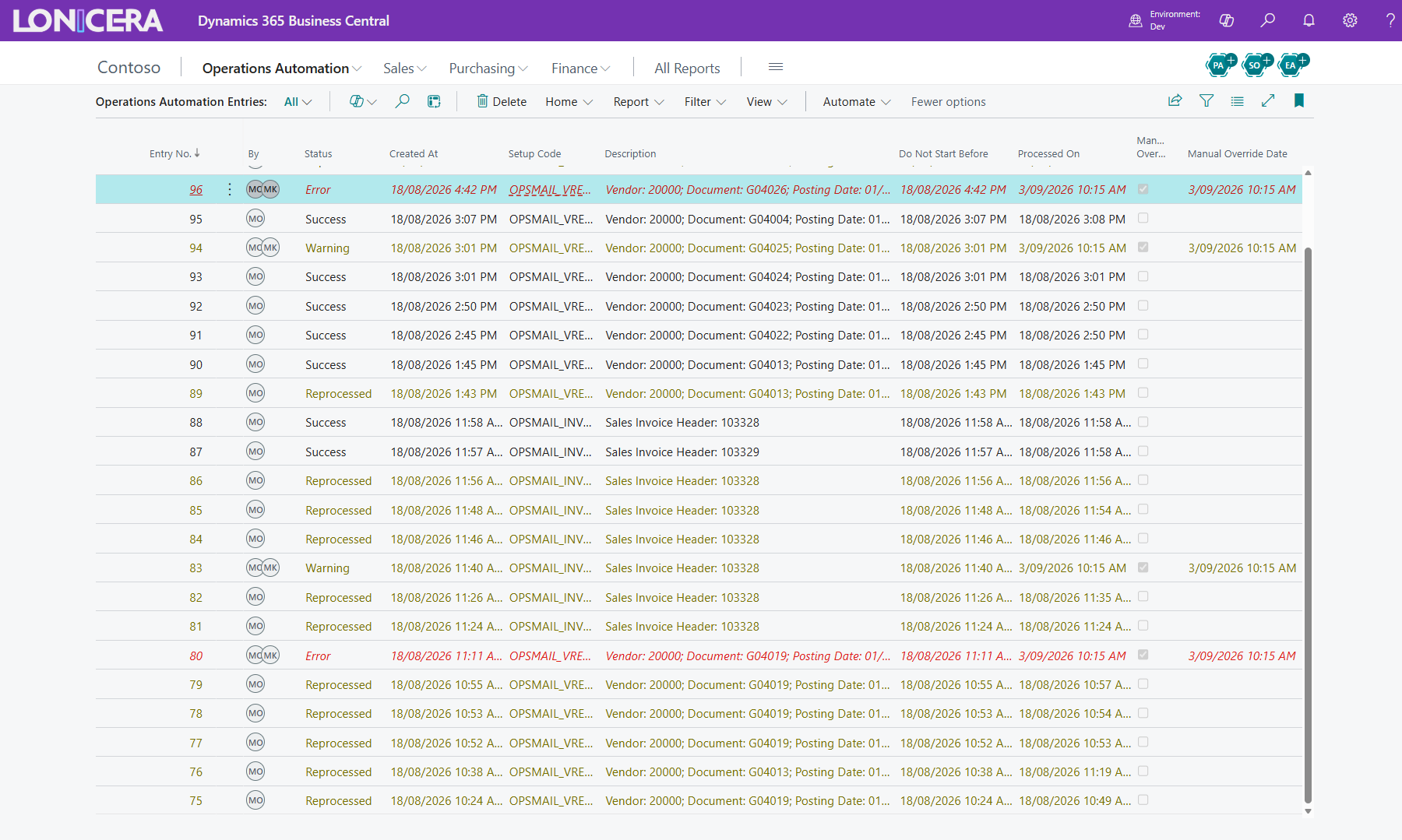
Each run is represented by an Operations Automation Entry. Entries capture the setup code, source document context, status, ownership by job queue entry, and related log and attachment information.
Related entries can be found from standard Business Central document "find entries" and from "Find Operations Automation Entries" for grouped source-reference lookup.
Notifications
Notifications are controlled in two places:
- Status Setup decides whether a finished status is eligible to send notifications by default.
- Each Operations Automation Setup decides which statuses should send for that setup and who receives them.
Email Scenario mapping is optional for entry notification emails. If no scenario mapping is configured, Business Central uses the default email sender and default email account.
Retention Policy For Entry And Log Entry Data
Retention for Entry and Log Entry data uses standard Business Central Retention Policies.
- Entry policies determine when completed or obsolete Operations Automation entries are eligible for cleanup.
- Log Entry policies determine when related operational logs are eligible for cleanup.
- Policy periods should balance audit/history requirements against table growth and long-term performance.
Use the procedures in How-to to configure and validate retention behavior for both Entry and Log Entry records.
Outbound Email Automation
The app includes built-in automation scenarios for:
- Posted sales invoices
- Customer statements
- Vendor remittance advice
These scenarios create Operations Automation entries and use Business Central report selection and email behavior to generate and send documents.
Integration And API Use
The app exposes API pages for operational integration. These APIs support setup and entry scenarios without requiring direct UI interaction.